
The Android Canvas API is a 2D graphics framework in the android.graphics package that lets you render shapes, text, bitmaps, and paths onto a surface. Your first move: override onDraw(Canvas canvas) in a custom View, or call SurfaceHolder.lockCanvas() on a SurfaceView for thread-driven rendering.
// Minimal custom View entry point
override fun onDraw(canvas: Canvas) {
    super.onDraw(canvas)
    canvas.drawCircle(width / 2f, height / 2f, 100f, paint)
}
The four components you always need, per the Canvas API reference: a Bitmap (pixel destination), the Canvas (drawing interface), a primitive (shape, text, or path), and a Paint object (color, style, stroke width, shaders).
- Override
onDraw(Canvas)for standard custom views - Call
SurfaceHolder.lockCanvas()/unlockCanvasAndPost()for secondary-thread rendering - Allocate
PaintandPathobjects once, outsideonDraw
Key Takeaways
The Android Canvas API rewards one habit above all others: allocate objects once, draw with them many times, and profile before assuming where the bottleneck is.
| Point | Details |
|---|---|
Allocate outside onDraw | Create Paint, Path, and Bitmap at class level to avoid garbage collection during drawing. |
| Match the surface to the use case | Use View + onDraw for UI widgets; use SurfaceView with a secondary thread for sustained 60+ FPS rendering. |
| Bitmap-backed Canvas requires mutable bitmaps | Passing an immutable bitmap to the Canvas constructor throws at runtime; always check isMutable(). |
| Profile before optimizing | Use Android Studio CPU Profiler and GPU Rendering Profile to find real bottlenecks, not assumed ones. |
| Compose DrawScope maps directly to Canvas | Use drawIntoCanvas in Compose when you need raw android.graphics.Canvas access for operations DrawScope doesn't expose. |
Table of Contents
- When should you use Android Canvas instead of standard views?
- What are the core Canvas objects you need to know?
- How do you use the common Canvas draw methods?
- How do coordinate transforms and save()/restore() work?
- How do clipRect and clipPath constrain drawing?
- How do you use a bitmap-backed Canvas safely?
- What are the performance rules for Canvas drawing?
- How do you animate Canvas drawings without dropping frames?
- How does Canvas work in Jetpack Compose?
- A minimal custom View you can drop into a project
- Common Canvas mistakes and how to debug them
- What production Canvas work actually looks like
- Sources
- FAQ
When should you use Android Canvas instead of standard views?
The answer depends on animation frequency and threading needs. For most custom UI widgets, a View with onDraw is the right call. For games or sustained 60+ FPS animations, you need a SurfaceView.
- Custom widgets and static graphics: Override
onDrawin aView. The system integrates it with the hardware-accelerated pipeline automatically. - Simple property animations: Still use
View+invalidate()orpostInvalidateOnAnimation(). No threading complexity. - High-frequency frame rendering (games, video overlays): Use
SurfaceViewwith a dedicated thread. Drawing to a SurfaceView withlockCanvas/unlockCanvasAndPostkeeps the UI thread free. - Jetpack Compose projects: Use
DrawScopeinside aCanvascomposable. It maps directly to Android Canvas primitives without touchingViewsubclassing. - Mixed Compose + View projects: Mount a classic custom
Viewinside Compose viaAndroidView, or usedrawIntoCanvasfor lower-level access.
Decision shortcut: if your drawing runs once or updates on user interaction, onDraw is enough. If it runs every frame on a timer, reach for SurfaceView.
Pro Tip: If you're unsure whether you need SurfaceView, time your onDraw with System.nanoTime(). If it consistently exceeds 4ms on a mid-range device, threading is worth the added complexity.
What are the core Canvas objects you need to know?
Custom drawing in Android revolves around four objects. Get these right and the rest of the API falls into place.
Canvas is the drawing surface. When the system calls onDraw, it hands you a Canvas already wired into the hardware-accelerated pipeline. Creating your own Canvas(bitmap) runs in software and bypasses that pipeline entirely.
Paint is where most visual quality decisions live. A few properties to set at initialization:
val paint = Paint(Paint.ANTI_ALIAS_FLAG).apply {
    color = Color.BLUE
    style = Paint.Style.FILL
    strokeWidth = 4f
    textSize = 48f
}
Path describes shapes the primitive draw calls can't express directly: Bézier curves, arcs chained together, compound contours with holes.
Bitmap carries pixel data. Density matters: create bitmaps with Bitmap.createBitmap(width, height, Bitmap.Config.ARGB_8888) and call setDensity explicitly to avoid unexpected scaling across screen densities.
- Set
Paint.ANTI_ALIAS_FLAGat construction, not per-draw - Use
Paint.Style.STROKEfor outlines,FILLfor solid shapes,FILL_AND_STROKEfor both - Prefer
Bitmap.Config.ARGB_8888for full color; useRGB_565only when memory is tight and alpha is unnecessary
Pro Tip: Paint is not thread-safe. If you share a Paint instance across threads (e.g., a background render thread and the main thread), you'll get intermittent visual corruption. One Paint per thread, or synchronize access explicitly.
How do you use the common Canvas draw methods?
Each draw method takes a geometry argument and a Paint. The signatures are consistent once you've seen a few.
// Rectangle
canvas.drawRect(RectF(50f, 50f, 300f, 200f), paint)

// Circle
canvas.drawCircle(cx, cy, radius, paint)

// Lines (flat array: x0,y0,x1,y1,x2,y2,...)
canvas.drawLines(floatArrayOf(0f, 0f, 100f, 100f, 100f, 0f, 200f, 100f), paint)

// Path (arbitrary shape)
val path = Path().apply {
    moveTo(100f, 200f)
    lineTo(200f, 50f)
    lineTo(300f, 200f)
    close()
}
canvas.drawPath(path, paint)

// Text
paint.textAlign = Paint.Align.CENTER
canvas.drawText("Hello", cx, cy - (paint.descent() + paint.ascent()) / 2, paint)

// Bitmap
canvas.drawBitmap(bitmap, srcRect, dstRect, paint)
A few things worth noting:
- Text baseline:
drawTextpositions text at the baseline, not the top. To center text vertically in a box, offset by-(paint.descent() + paint.ascent()) / 2. - Bitmap scaling:
drawBitmap(bitmap, srcRect, dstRect, paint)scales the source rectangle to fit the destination. PassnullforsrcRectto use the full bitmap. drawLinesvsdrawLine:drawLinestakes a flat float array and draws multiple segments in one call, which is faster than looping overdrawLine.drawRoundRect: takes aRectFplusrxandrycorner radii. Cleaner than clipping a rectangle to a rounded path.
For bitmap assets you're generating or exporting from Canvas artwork, an app icon generator can produce correctly sized assets at each density bucket, saving the manual dstRect math for launcher icons.
How do coordinate transforms and save()/restore() work?
Every transform you apply (translate, rotate, scale, skew) modifies the Canvas's current matrix. That matrix persists until you reset it. save() and restore() are how you isolate transforms so one draw step doesn't corrupt the next.
canvas.save()                          // push current matrix onto stack
canvas.translate(cx, cy)              // move origin to center
canvas.rotate(45f)                    // rotate 45° around new origin
canvas.drawRect(-50f, -50f, 50f, 50f, paint)  // draw centered square
canvas.restore()                       // pop: matrix returns to pre-save state
Think of save() / restore() as a stack. Each save() pushes a snapshot; each restore() pops it. Forgetting a restore() in a complex draw sequence causes transforms to accumulate across frames, which produces the classic "spinning off-screen" bug.
translate(dx, dy): shifts the origin. Use it to draw a component at a position without adding offsets to every coordinate.rotate(degrees, px, py): rotates around a pivot point. The two-argument form rotates around the current origin.scale(sx, sy): scales from the current origin. Combine withtranslateto scale around an arbitrary center.skew(kx, ky): shears the coordinate system. Rarely needed for UI, but useful for italic-style effects on custom text.
For complex sequences, Matrix gives you explicit control: compose operations in a Matrix object, then apply with canvas.concat(matrix) or canvas.setMatrix(matrix). This is cleaner than chaining multiple canvas.rotate() / canvas.translate() calls when the transform is computed dynamically.
Pro Tip: canvas.save() returns an integer (the save count). You can call canvas.restoreToCount(count) to unwind multiple saves at once — useful in recursive draw methods where the depth is variable.
How do clipRect and clipPath constrain drawing?
Clipping restricts where subsequent draw calls land. Anything outside the clip region is simply not drawn, regardless of what you pass to drawRect or drawBitmap.
canvas.save()
canvas.clipRect(RectF(0f, 0f, 200f, 200f))   // only draw inside this rect
canvas.drawBitmap(largeBitmap, 0f, 0f, paint) // pixels outside rect are clipped
canvas.restore()
Common uses:
- Viewport clipping: restrict a scrolling content area to its visible bounds
- Rounded corners: clip to a
Pathwith rounded corners before drawing a bitmap - Reveal animations: animate the clip rect to progressively expose content
Combining clips uses intersection by default. clipRect intersects the new rect with the existing clip region. To union or difference, pass a Region.Op argument: canvas.clipRect(rect, Region.Op.UNION). Order matters: the second clip operates on the result of the first.
Hardware acceleration caveat: not all Region.Op values are supported on hardware-accelerated canvases. DIFFERENCE and XOR ops fall back to software rendering on many devices, which can cause visible performance drops. Stick to INTERSECT (the default) when hardware acceleration is active, and test canvas.isHardwareAccelerated() if you need the others.
How do you use a bitmap-backed Canvas safely?
A bitmap-backed Canvas renders into a Bitmap in memory rather than directly to the screen. You use this for caching expensive draw operations, compositing layers, or producing image output.
val cacheBitmap = Bitmap.createBitmap(width, height, Bitmap.Config.ARGB_8888)
val cacheCanvas = Canvas(cacheBitmap)
// Draw into cache
cacheCanvas.drawPath(complexPath, paint)
// Later, in onDraw:
canvas.drawBitmap(cacheBitmap, 0f, 0f, null)
The platform Canvas source enforces that the bitmap passed to the Canvas constructor must be mutable. Passing an immutable bitmap throws an IllegalStateException at runtime. Defensive check: if (!bitmap.isMutable()) bitmap = bitmap.copy(Bitmap.Config.ARGB_8888, true).
| Concern | What to do |
|---|---|
| Mutable requirement | Always create with Bitmap.createBitmap(...), never decode directly into a Canvas |
| Density mismatch | Call bitmap.setDensity(resources.displayMetrics.densityDpi) after creation |
| Memory | Recycle bitmaps in onDetachedFromWindow() or onDestroy() |
| Max size | Skia enforces a maximum bitmap dimension; stay under 4096×4096 for broad device support |
- Invalidate the cache bitmap only when the underlying data changes, not every frame
- Avoid creating the bitmap inside
onDraw; allocate it inonSizeChangedwhere you have the correct dimensions - For compositing with transparency,
ARGB_8888is required;RGB_565drops the alpha channel
What are the performance rules for Canvas drawing?
The single most damaging pattern is allocating objects inside onDraw. Every new Paint() or new Path() inside that method triggers garbage collection, which causes frame drops. The Android Developers archival guide is explicit: instantiate heavy objects once and reuse them.
- Never allocate in
onDraw: movePaint,Path,RectF, andMatrixto class-level fields - Avoid
saveLayer: it allocates an offscreen buffer every call. Use it only when you genuinely need alpha compositing or blend modes on a group of draws - Use shaders instead of geometry tricks: a
LinearGradientshader on aPaintis cheaper than drawing dozens of thin rectangles to simulate a gradient - Batch draw calls:
drawLineswith a float array beats a loop ofdrawLinecalls;drawBitmapwith aMatrixbeats repeated translate/draw cycles - Hardware acceleration caveats: the system
CanvasinonDrawis hardware-accelerated. ACanvas(bitmap)you create yourself is software-only. Mixing them in the same frame path can cause unexpected performance cliffs
Profiling steps:
- Enable GPU Rendering Profile in Developer Options (look for bars exceeding the 16ms line)
- Use Android Studio CPU Profiler with the "Sample Java Methods" mode to find
onDrawhotspots - Run systrace (or Perfetto) to see frame timing and identify dropped frames correlated with GC events
- Check Show GPU Overdraw in Developer Options: red regions mean you're drawing the same pixel multiple times per frame
Pro Tip: invalidate(Rect dirty) redraws only the specified region. If your animation updates a small area of a large view, passing a dirty rect can cut GPU work significantly compared to invalidating the whole view.
How do you animate Canvas drawings without dropping frames?
For simple animations tied to the view lifecycle, postInvalidateOnAnimation() is the right call. It schedules a redraw synchronized with the display's vsync signal, which means you get smooth 60 FPS updates without busy-polling.
override fun onDraw(canvas: Canvas) {
    angle += 2f
    canvas.drawArc(oval, angle, 270f, false, paint)
    postInvalidateOnAnimation()   // schedule next frame at vsync
}
Use invalidate() for one-shot redraws triggered by data changes (a user tap, a new data point). Use postInvalidateOnAnimation() when the view needs to update continuously.
For sustained 60+ FPS rendering, a SurfaceView with a dedicated thread is the correct model. The UI thread never touches the canvas; the render thread calls lockCanvas, draws, then unlockCanvasAndPost.
// Inside a render thread
val holder = surfaceView.holder
val canvas = holder.lockCanvas() ?: return
try {
    canvas.drawColor(Color.BLACK)
    canvas.drawCircle(x, y, radius, paint)
} finally {
    holder.unlockCanvasAndPost(canvas)
}
Lifecycle safety matters here. Pause the render thread in SurfaceHolder.Callback.surfaceDestroyed and resume in surfaceCreated. Failing to do this causes draws to a destroyed surface, which crashes with a native exception.
invalidate(): one-shot, immediate, main thread onlypostInvalidateOnAnimation(): vsync-synced, safe to call from any threadSurfaceView+ thread: for games, camera overlays, or anything needing frame-rate independence from the UI thread
How does Canvas work in Jetpack Compose?
Compose exposes drawing through DrawScope, which wraps the underlying Android Canvas and maps its primitives into Compose idioms. The Compose Canvas API covers the same operations: drawRect, drawCircle, drawPath, drawImage.
Canvas(modifier = Modifier.fillMaxSize()) {
    drawCircle(
        color = Color.Blue,
        radius = 100f,
        center = center
    )
    drawIntoCanvas { canvas ->
        // Access the underlying android.graphics.Canvas
        canvas.nativeCanvas.drawText("Hello", 0f, 100f, androidPaint)
    }
}
drawIntoCanvas gives you the raw android.graphics.Canvas when you need operations DrawScope doesn't expose directly, like drawText with a custom Paint or clipPath with a Region.Op.
- Coordinate system:
DrawScopeuses the same top-left origin as Android Canvas;size.widthandsize.heightgive you the composable's dimensions - State:
DrawScopeis stateless by design. Animate values usinganimateFloatAsStateorAnimatableand read them inside theCanvasblock - Interop: mount a classic custom
Viewinside Compose withAndroidView { context -> MyCustomView(context) }. Go the other direction by rendering a Compose layout to aBitmapviaComposeViewanddrawToBitmap()
Pro Tip: Avoid reading State objects inside DrawScope that change every frame without using derivedStateOf. Each state read triggers recomposition of the entire Canvas block, not just a redraw. Use LaunchedEffect + Animatable for frame-by-frame animation instead.
A minimal custom View you can drop into a project
This example covers construction, onDraw, touch handling, and bitmap caching in one class.
class DemoCanvasView @JvmOverloads constructor(
    context: Context,
    attrs: AttributeSet? = null
) : View(context, attrs) {

    // Allocate outside onDraw
    private val shapePaint = Paint(Paint.ANTI_ALIAS_FLAG).apply {
        color = Color.BLUE
        style = Paint.Style.FILL
    }
    private val textPaint = Paint(Paint.ANTI_ALIAS_FLAG).apply {
        color = Color.WHITE
        textSize = 48f
        textAlign = Paint.Align.CENTER
    }
    private val path = Path()

    private var cacheBitmap: Bitmap? = null
    private var cacheCanvas: Canvas? = null
    private var cacheValid = false

    private var touchX = 0f
    private var touchY = 0f

    override fun onSizeChanged(w: Int, h: Int, oldw: Int, oldh: Int) {
        // Create cache bitmap at correct size
        cacheBitmap?.recycle()
        cacheBitmap = Bitmap.createBitmap(w, h, Bitmap.Config.ARGB_8888).also {
            it.setDensity(resources.displayMetrics.densityDpi)
            cacheCanvas = Canvas(it)
        }
        cacheValid = false
    }

    override fun onDraw(canvas: Canvas) {
        if (!cacheValid) {
            renderToCache()
            cacheValid = true
        }
        cacheBitmap?.let { canvas.drawBitmap(it, 0f, 0f, null) }

        // Touch indicator drawn directly (changes every touch)
        canvas.drawCircle(touchX, touchY, 30f, shapePaint)
    }

    private fun renderToCache() {
        val cc = cacheCanvas ?: return
        cc.drawColor(Color.DKGRAY)

        // Triangle path
        path.reset()
        path.moveTo(width / 2f, 80f)
        path.lineTo(width - 80f, height / 2f)
        path.lineTo(80f, height / 2f)
        path.close()
        cc.drawPath(path, shapePaint)

        // Centered text
        val textY = height * 0.75f - (textPaint.descent() + textPaint.ascent()) / 2
        cc.drawText("Canvas Demo", width / 2f, textY, textPaint)
    }

    override fun onTouchEvent(event: MotionEvent): Boolean {
        touchX = event.x
        touchY = event.y
        invalidate()   // redraw only on touch, not every frame
        return true
    }

    override fun onDetachedFromWindow() {
        super.onDetachedFromWindow()
        cacheBitmap?.recycle()
        cacheBitmap = null
        cacheCanvas = null
    }
}
Key decisions in this code:
PaintandPathare class fields, never recreated inonDraw- The cache bitmap is allocated in
onSizeChanged, where the view dimensions are known - Static content renders once into the cache; dynamic content (the touch circle) draws directly each frame
onDetachedFromWindowrecycles the bitmap to prevent memory leaksinvalidate()fires only on touch events, not on a continuous loop
Pro Tip: Test this view with Android Studio's Layout Inspector to verify the bitmap dimensions match the view's pixel size. A density mismatch shows up as blurry rendering that's easy to miss on a high-DPI emulator but obvious on a real device.
Common Canvas mistakes and how to debug them
Most Canvas bugs fall into a small set of root causes.
- Null or immutable bitmap passed to Canvas constructor: check
bitmap.isMutable()before constructing. The platform Canvas source throwsIllegalStateExceptionimmediately; the stack trace points directly to your constructor call. - Transform leakage: a missing
restore()means the nextonDrawcall starts with a rotated or translated matrix. Fix: wrap every transform block insave()/restore()and usecanvas.restoreToCount(saveCount)infinallyblocks for safety. - Wrong density scaling: a bitmap drawn at the wrong density appears scaled. Set
bitmap.setDensity(resources.displayMetrics.densityDpi)after creation. - Clip operations falling back to software:
Region.Op.DIFFERENCEon a hardware-accelerated canvas silently switches to software rendering. Checkcanvas.isHardwareAccelerated()and test on a physical device, not just the emulator. - Allocations in
onDraw: the symptom is periodic frame drops every few seconds as GC runs. The Android Studio CPU Profiler's allocation tracker will showPaint.<init>orPath.<init>inside theonDrawcall stack.
Debug checklist:
- Turn on Show GPU Overdraw (Developer Options) to spot redundant draws
- Use Layout Inspector to confirm view dimensions and bitmap sizes match expectations
- Run GPU Rendering Profile and look for frames exceeding the 16ms threshold
- Call
canvas.isHardwareAccelerated()inonDrawand log it; mismatches between expected and actual acceleration mode explain many rendering anomalies - For
Canvasexceptions, read the stack trace from the bottom up: the framework call is at the top, your code is further down
What production Canvas work actually looks like
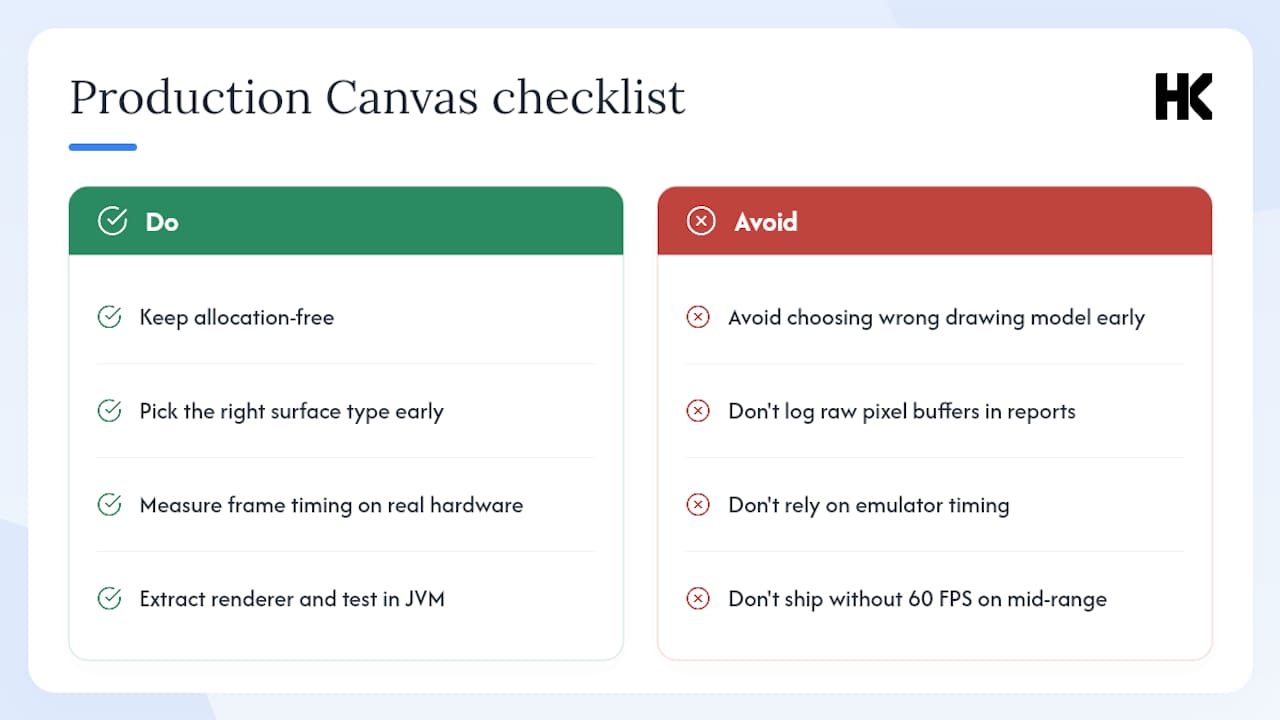
The Canvas API is one of those parts of Android where the documentation is good and the pitfalls are still everywhere. The gap isn't knowledge of the API surface; it's the operational discipline to keep onDraw allocation-free, to pick the right surface type before writing a line of drawing code, and to measure frame timing on real hardware rather than the emulator.
From engineering work on production systems at BMW, Deutsche Bahn, and Bundesrechenzentrum Austria, the pattern that causes the most rework is choosing the wrong drawing model early. A team builds a complex custom View with onDraw, ships it, then discovers it can't sustain 60 FPS on mid-range devices. Migrating to SurfaceView at that point means rewriting threading, lifecycle handling, and touch event routing. The decision guide in this article exists to prevent that.
On EU/DACH projects, one production note worth flagging: if your Canvas-based view renders user-generated content (signatures, annotations, freehand drawings) and that content is stored or transmitted, GDPR applies to the bitmap data. Treat rendered bitmaps containing personal data the same as any other personal data artifact: scope retention, document processing purpose, and avoid logging raw pixel buffers in crash reports.
Testability is the other underrated concern. Custom View drawing is notoriously hard to unit test. The practical answer is to extract drawing logic into a stateless renderer class that takes a Canvas and a data model, then test the renderer with a Bitmap-backed Canvas in a JVM test. The View itself becomes a thin wrapper that calls the renderer in onDraw.
Sources
FAQ
What is Android Canvas?
Android Canvas is a class in the android.graphics package that provides a 2D drawing interface. It lets you render shapes, text, bitmaps, and paths onto a View or a Bitmap surface.
What is Canvas used for in Android programming?
Canvas is used to build custom UI components, draw charts and graphs, create game graphics, and render any visual content the standard View system can't express directly. You access it by overriding onDraw(Canvas) in a custom View.
Is there a Google Canvas app for Android?
There is no standalone Google app called "Canvas" for Android. The term refers to the android.graphics.Canvas API class used in Android development, not a consumer drawing application.
How does Jetpack Compose relate to Android Canvas?
Compose exposes drawing through DrawScope inside a Canvas composable. It wraps the underlying android.graphics.Canvas and maps its primitives into Compose idioms. Use drawIntoCanvas when you need direct access to the native canvas.
When should you use SurfaceView instead of a custom View?
Use SurfaceView when you need sustained high-frequency rendering (60+ FPS games, video overlays) on a secondary thread. For standard UI widgets and occasional redraws, a custom View with onDraw is simpler and integrates cleanly with the hardware-accelerated pipeline.